Viewing Upcoming Trips
When you log in to EZActivityTrips, the system automatically directs you to your dashboard. You can request new trips, view upcoming trips, and update trips marked as “changes requested” from this screen.
To view upcoming Trips, click the My Upcoming Trips panel towards the top left. The number indicates how many future trips you have.
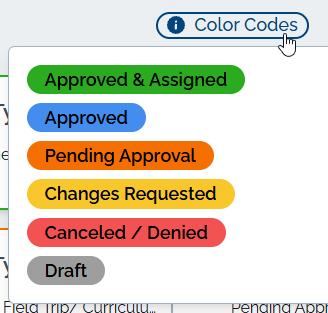 Trip Request Status
The color of the trip request summary indicates the Trip Request's status. A key is located at the top right.
Green: Approved & Assigned
Blue: Approved, not assigned
Orange: Pending Approval
Yellow: Waiting on Quote.Changes Requested (Not Submitted)
Red: Cancelled/Denied
Alternatively, you can see the trip request status in the record under the Status column.
Changes Requested
If an approver is concerned about the trip, they can mark it as “changes requested.” Opening the trip will provide more detail about the requested changes. You will need to make the changes and resubmit the trip for approval.
Vehicle Assignments
If your trip is approved and assigned, click on the down arrow on the right side of the trip summary to expand the trip information. The assignment information is listed to the far right.
To see all your vehicle reservations, navigate to the Assignments tab.
You will see all vehicles listed if more than one vehicle is assigned to a trip.
Updated